 Q3
Q3Free Browser Extension
Save Image As JPG, PNG, WebP — Free Browser Extension
Right-click any image and save it as JPG, PNG or WebP. It is a real conversion, done in your browser, so your images are never uploaded.
What it does
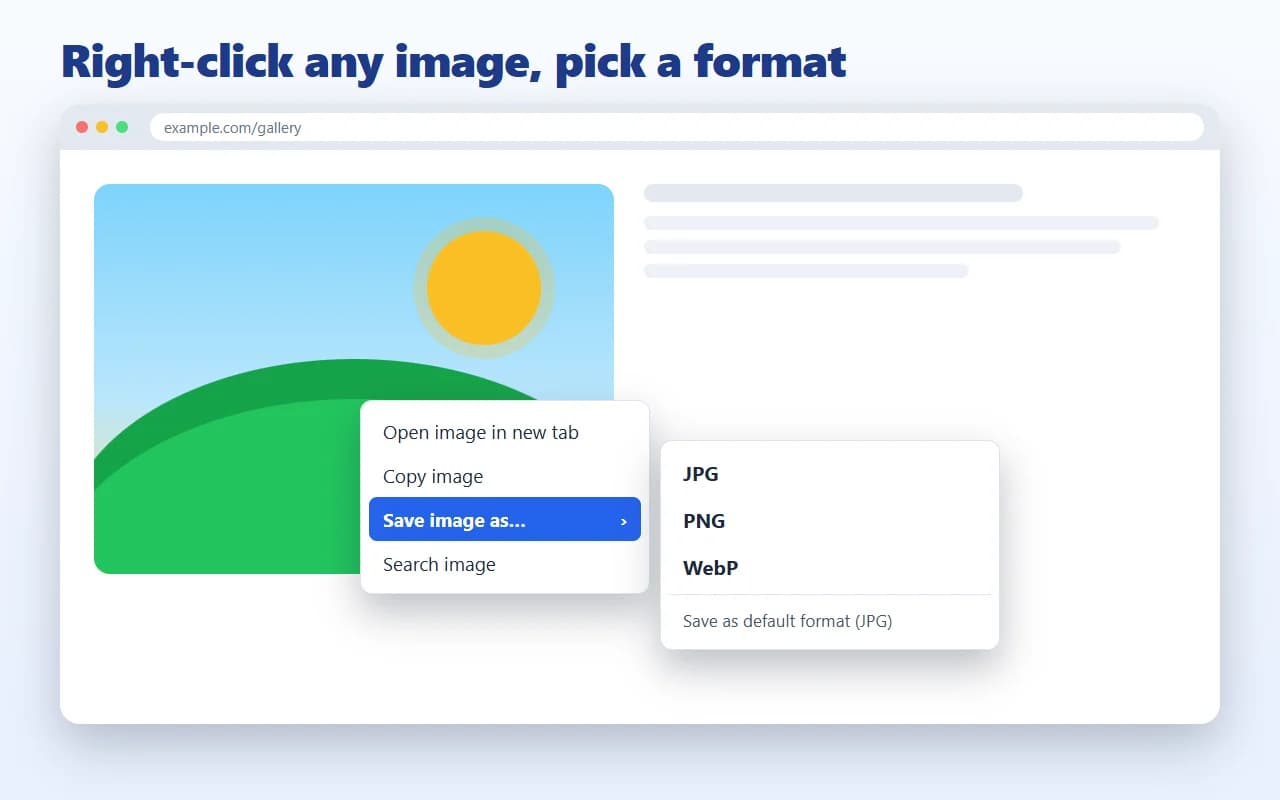
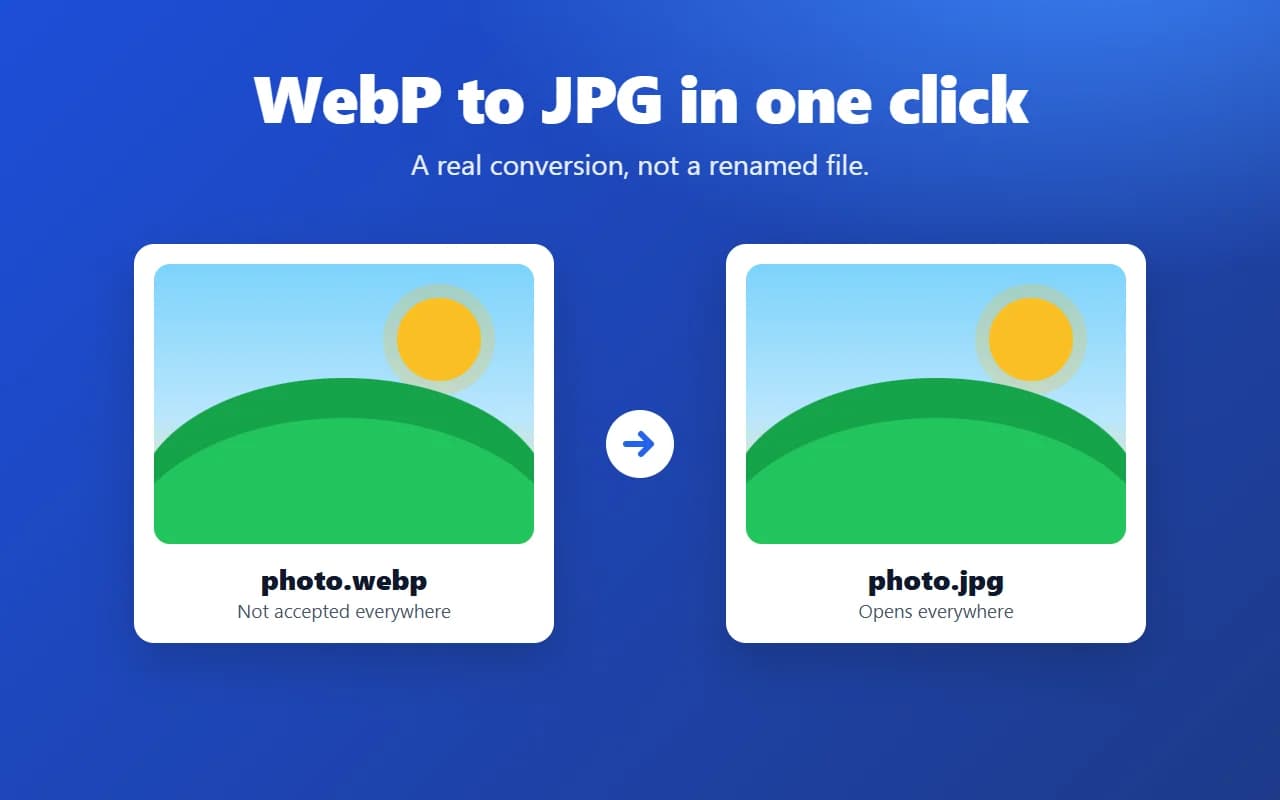
Q3 Save Image As adds one entry to the right-click menu on images: Save image as… with JPG, PNG and WebP, plus a “Save as default format” shortcut. It converts the image for real, not by renaming the file, so a WebP or AVIF from a website becomes a JPG or PNG that any app accepts.
It works with WebP, PNG, JPG, GIF (first frame), AVIF and SVG images. Transparent areas turn white when you save as JPG. File names are cleaned up: the original name, without the web address junk, with the right extension.
How to use it
- 1
Install the extension
Add it to Chrome, Edge, Opera or Firefox from the store page. There is nothing to sign in to.
- 2
Right-click an image
On any website, right-click the image and choose “Save image as…”.
- 3
Pick JPG, PNG or WebP
Choose the format (or “Save as default format”), then pick where to save the converted file.
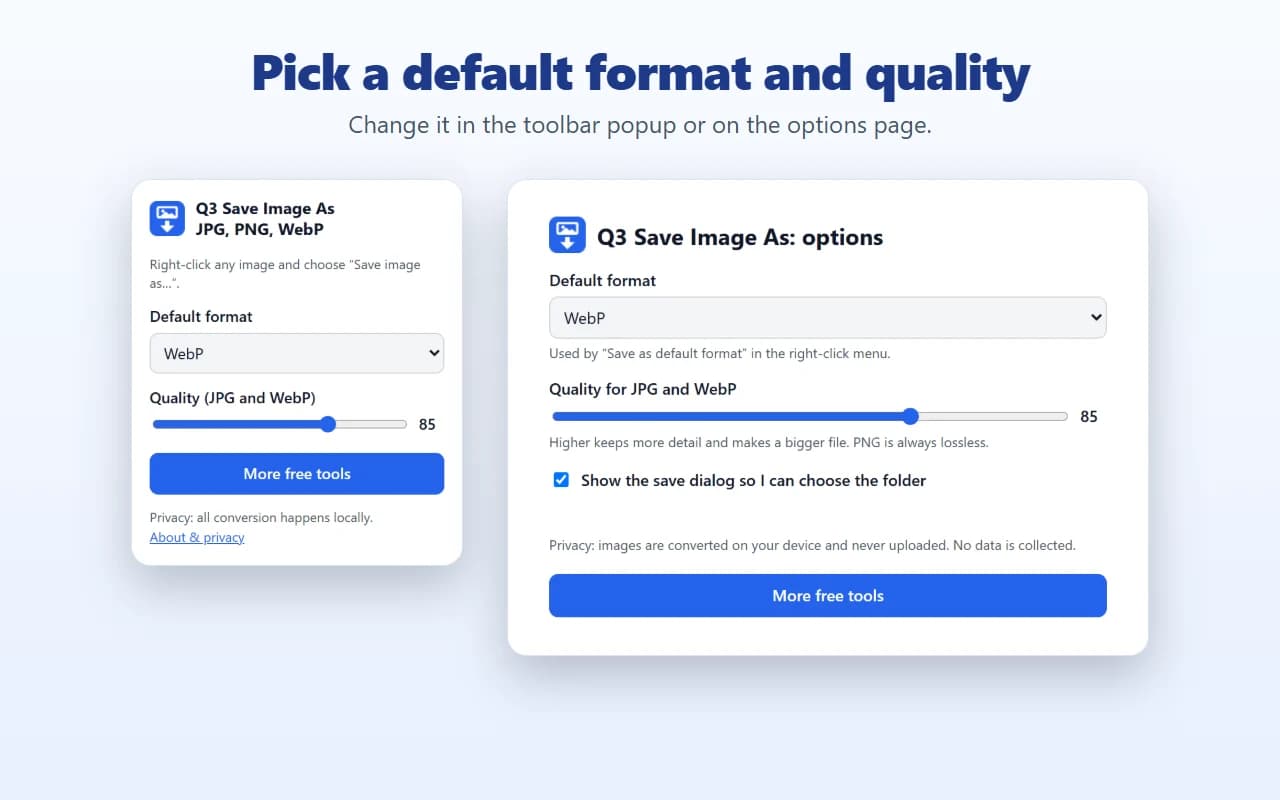
Set your default format, the JPG/WebP quality (50 to 100) and whether to show the save dialog.
Supported browsers
Chrome
Chrome and other Chromium browsers.
Edge
Microsoft Edge, from the Edge Add-ons store.
Opera
Opera, from the Opera add-ons store.
Firefox
Firefox 140 and newer.
Private by design
Conversion happens on your device. The extension has no analytics, tracking, accounts or remote code, and its only network request is the one that fetches the image you right-clicked. Open source (MIT): view the source code on GitHub. Read the privacy policy.
Frequently asked questions
Why do images save as WebP?
Is it safe?
Does it work on Firefox, Edge and Opera?
What happens to transparent PNGs saved as JPG?
Can I choose the quality?
Does it work with SVG and GIF images?
More image tools
Prefer to work in the browser tab? Compress a photo with the Image Compressor, check its pixels and file size with the Image Size Finder, read its hidden data in the Image Metadata Viewer, find where else it appears with Reverse Image Search, or resize it for an exam form with the Exam Photo & Signature Resizer. Browse every free tool on our tools page or see all Q3 Labs browser extensions.