 Q3
Q3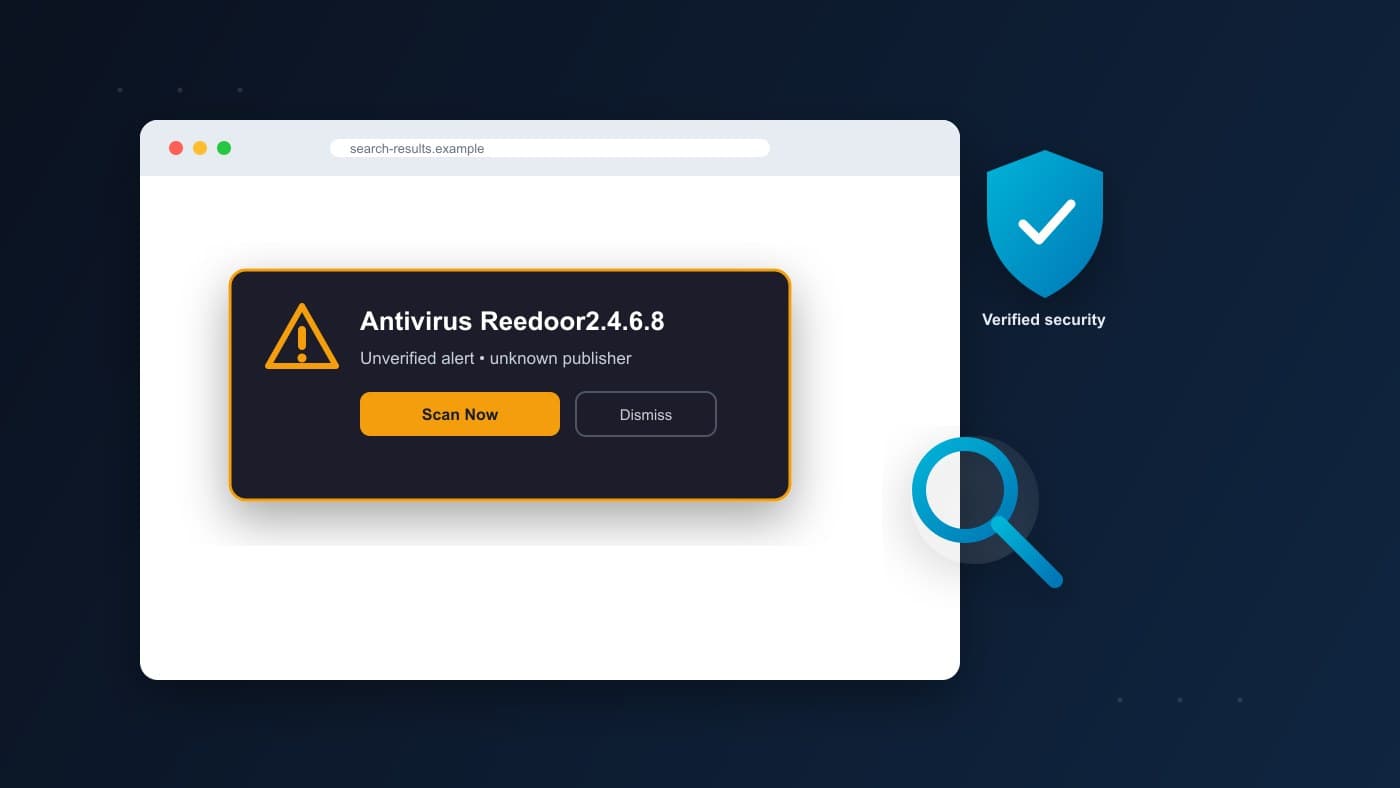
If you searched for "Antivirus Reedoor2.4.6.8," you probably saw the term somewhere unsettling: a browser pop-up dressed up like a security warning, a strange entry in Task Manager, an app you don't remember installing, or just a search result that made it sound like a known threat. Whatever the source, you want a straight answer to one question: is my PC infected?
We can't answer that from the name alone, and neither can anyone else. "Reedoor2.4.6.8" doesn't correspond to a publisher, a company, or a documented product that we could verify while researching this article. The version-style number at the end makes it look like a legitimate release, but that's exactly the kind of detail that can make an unfamiliar name feel more official than it actually is.
Short answer: the name by itself doesn't prove anything, good or bad. What matters is where you actually saw it. A browser pop-up, an installed app, a Task Manager process, and a Windows Defender detection are four different situations with four different explanations, and this article walks through each one so you can figure out which applies to you and what to do next.
What Is Antivirus Reedoor2.4.6.8?
Based on the publicly available information reviewed for this article, "Reedoor2.4.6.8" doesn't have an identifiable publisher, an official website, or any product documentation attached to it. It shows up in search results and in discussion around suspicious browser alerts, but that's a different thing from being a documented piece of software with a known origin.
This is worth pausing on, because the format of the name does a lot of work. "Antivirus Reedoor2.4.6.8" reads like a real product with a version number, the same way "Windows Defender 2.4.6.8" would. Version-style numbering is common in legitimate software, so seeing it attached to an unfamiliar name can make that name feel more credible than it's earned. Scareware and low-quality unwanted programs frequently borrow this kind of formatting for exactly that reason.
None of this means Reedoor2.4.6.8 is definitely fake or definitely malicious. It means there isn't enough public information to treat it as a verified antivirus product, and it shouldn't be trusted as one on the strength of its name alone.
Is Reedoor2.4.6.8 a Real Antivirus Program?
There's a meaningful difference between a commercial antivirus product and a name that merely sounds like one. A legitimate security product is usually backed by things you can actually verify:
- An identifiable company with a real business history
- Official product documentation, explaining what it does and how
- A distribution channel you can trace back to that company, such as its own website or a listing in the Microsoft Store
- Support resources, including a way to contact the vendor
- In many cases, results from independent testing labs like AV-Comparatives or AV-TEST
We looked for this kind of evidence for Reedoor2.4.6.8 and didn't find it. That's different from saying it's been checked against every security database and cleared or flagged; we're not making that claim, because we don't have access to real-time detection data for every antivirus engine, and neither does any single article. What we can say is that a name without a traceable publisher, documentation, or an official download page doesn't meet the basic bar for a verified antivirus product, and that alone is a reason to be cautious around it, regardless of where you encountered it.
Is Reedoor2.4.6.8 a Virus or Malware?
This is the question most people searching this term actually want answered, and it deserves a careful answer rather than a scary one.
The name alone does not prove that a computer is infected. Whether something is a virus, malware, or nothing at all depends on what's actually present and running on your specific device, not on a term appearing in a search result or a pop-up window. Two people who both "saw Reedoor2.4.6.8" could be dealing with completely different situations: one might have an actual unwanted program installed, and the other might have simply read an article that mentioned the name.
It also helps to separate terms that get used interchangeably in everyday conversation but mean different things to a security researcher:
- Virus — a specific category of malicious software that replicates itself and spreads to other files or systems. Most modern threats aren't technically viruses in this strict sense, even though the word is used loosely to mean "malware" in general.
- Malware — the broad umbrella term for any software designed to damage, disrupt, or gain unauthorized access to a system. Viruses, trojans, spyware, and ransomware all fall under this label.
- PUA/PUP (potentially unwanted application/program) — software that isn't necessarily malicious but that most people wouldn't knowingly install: aggressive toolbars, bundled "optimizer" tools, or apps that arrived alongside something else you downloaded.
- Scareware — software or web content designed to frighten you into taking an action, usually paying for a "fix" or installing something else, by exaggerating or fabricating a security threat.
- Browser notification scam — a website that requested permission to send you notifications and later uses that permission to push alarming, antivirus-style messages. Nothing is installed on your computer; the alert is generated entirely by your browser.
- Detection label — the internal name a security product assigns to something it flags. Detection labels are sometimes generic or heuristic, meaning the product suspects a pattern of behavior rather than having identified a specific, named threat.
None of these are interchangeable, and the right response is different for each one. Reacting to "Reedoor2.4.6.8" as if it's automatically the worst of these categories, without checking which one actually applies, is how people end up taking the wrong action, like paying an unverified vendor or deleting a file that turns out to be harmless.
Why Am I Seeing Reedoor2.4.6.8?
This is the section worth reading most carefully, because the source of the alert determines everything else you should do.
I saw it in a browser pop-up
This is the most commonly reported way people encounter names like this. A website can be built specifically to display an alarming message styled like a system security warning, complete with fake scan animations, a countdown timer, or a "your PC is infected" claim. These pages are designed to pressure you into clicking a button, calling a phone number, or downloading a file. The pop-up isn't a sign that your operating system found a threat; it's a page in your browser designed to look like one.
I saw it in a browser notification
This is a related but distinct mechanism. At some point, a website asked your browser for permission to send notifications, and you (or someone else using the device) approved it, possibly without fully noticing the prompt. That site can then send notification-style messages that appear even after you've closed the tab, sometimes formatted to look like antivirus alerts. This is a browser permission issue, not a sign of infection, and it's addressed by removing that site's notification permission (covered below).
I saw it in Task Manager
If you found an actual running process using this name, the process name by itself still isn't enough to draw a conclusion. Legitimate software and malicious software can both have unremarkable-looking names, and malicious software sometimes deliberately imitates the name of something legitimate. Before assuming anything, check:
- File location — where the executable actually lives on disk. Core system processes run from specific, well-known folders; something claiming to be a system file but running from a temporary or downloads folder is worth scrutinizing.
- Publisher — right-click the process in Task Manager, choose "Properties," and check the "Digital Signatures" tab for a named, verifiable publisher.
- Digital signature — whether that publisher's signature is actually valid, not just present.
- Parent process, where relevant — what launched it, which can help you trace where it came from.
- Installation source — whether you can connect it to something you deliberately installed.
Don't end the process or delete anything based on the name alone. If something looks genuinely suspicious after checking these details, a scan from trusted, up-to-date security software is a safer next step than manual deletion.
I saw it in Installed Apps
Open your list of installed applications (Settings > Apps on Windows) and look at the entry itself rather than just the name:
- Publisher — does it list a real, identifiable company?
- Installation date — does it line up with something you actually installed, or did it appear on its own?
- Application name and description — is there anything else listed about what it does?
- Uninstall source — most legitimate apps uninstall cleanly through Windows' own uninstaller; that's also the safest way to remove something you've confirmed you don't want.
If you don't recognize installing it and can't identify a legitimate publisher, it's reasonable to treat it as unwanted and remove it through the normal Windows uninstall process, covered in the removal section below.
Windows Defender showed it
This is a genuinely different situation from the others, and it deserves to be treated differently. If Microsoft Defender (or another security product you already trust) generated an actual detection, don't rely on a screenshot, a search result, or a general article like this one to interpret it. Open Windows Security, go to Protection history, and read the specific detection details Windows itself provides: what was detected, where it was found, and what action Defender took or recommends. Follow Windows Security's own guidance from there rather than substituting a name search for the real detection information.
I saw it in an error message
An error message that happens to include this term doesn't automatically mean malware is involved. Error messages reference all kinds of things: missing files, failed updates, misconfigured settings, or unrelated software. The useful next step is identifying which application actually generated the error and what it was trying to do when it failed, rather than reacting to one word inside the message.
I only saw it in a search result or article
If the only place you've encountered "Reedoor2.4.6.8" is a search result, a forum post, or an article like this one, there may be nothing on your computer at all connected to it. Reading about a term is not the same as having software that matches it installed on your device. It's still reasonable to double-check using the diagnostic steps below, mainly for peace of mind, but there's no reason to assume infection just because the term exists somewhere on the internet.
Is Reedoor2.4.6.8 Safe?
There isn't a clean yes-or-no answer, and any article that gives you one is oversimplifying. What's reasonable to say is this: treat it with the same caution you'd apply to any unfamiliar name showing up in a security context, and don't let urgency drive your next decision. A few things hold regardless of where you encountered it:
- Don't download software because a pop-up or notification recommends it.
- Don't pay an unknown vendor because a warning message tells you your PC is at risk.
- Don't disable your existing antivirus or Windows Defender to install or interact with it.
- Don't add an unfamiliar file or process to your antivirus's exclusion list just because something told you to.
- Identify where the name actually came from before deciding it needs any action at all.
If it turns out the term only appeared in a search result, there may genuinely be nothing to remove. If it turns out to be an installed app, a confirmed unwanted process, or an actual Defender detection, the sections above and below walk through how to handle each of those specifically.
How to Check Whether Reedoor2.4.6.8 Is Actually on Your Windows PC
These steps are safe, reversible, and don't require deleting or disabling anything on their own.
Step 1: Identify where you saw the name. Was it a browser tab, a desktop notification, Task Manager, your installed apps list, an error dialog, or a search result? This single detail determines almost everything else.
Step 2: Check Installed Apps. Go to Settings > Apps > Installed apps (or Apps & Features on older versions of Windows) and search for the name. If it's not there, it isn't installed as a standalone application on your PC.
Step 3: Check Task Manager if there's an actual running process. Open Task Manager (Ctrl+Shift+Esc), look through the Processes tab, and see whether anything matches.
Step 4: Inspect the process or file location. Right-click a suspicious process, choose "Open file location," and note where it actually lives on disk.
Step 5: Check the digital signature and publisher. Right-click the file itself, go to Properties, then the Digital Signatures tab, and look for a named, verifiable publisher.
Step 6: Review Windows Security's Protection History. Open Windows Security, go to Protection history, and see whether Defender has logged anything relevant, along with its own details and recommended action.
Step 7: Run a scan using trusted, already-installed security software. Windows Security's built-in scan (or another reputable product you already use and trust) is the safest way to get a real read on your system, rather than downloading anything new to check.
If none of these turn up anything, it's reasonable to conclude the term isn't present on your device in any meaningful way.
How to Deal With a Reedoor2.4.6.8 Browser Pop-Up
If everything points to a browser-based warning rather than an installed program, the fix usually lives entirely inside your browser.
- Don't click "scan now," "remove now," or any similar button inside the pop-up.
- Don't download anything the warning offers you.
- Close the tab (or the entire browser window, if the tab won't close normally).
- Check your browser's site notification permissions and remove access for any site you don't recognize or trust.
- Clear browsing data for the site in question if the behavior persists.
- Run a scan with your existing, trusted security software if you're still concerned after closing the tab.
Where to find notification settings varies slightly by browser, and menu labels do change between versions, so treat the following as general locations rather than exact click-by-click steps:
Chrome: Settings > Privacy and security > Site settings > Notifications, where you can review and remove permissions for individual sites.
Edge: Settings > Cookies and site permissions > Notifications, with the same kind of per-site list.
Firefox: Settings > Privacy & Security, then the Permissions section, where Notifications has its own settings and exceptions list.
If your browser's menu layout looks different from this, search your browser's own settings for "notifications" — every major browser has a dedicated section for managing which sites can send them.
How to Remove Reedoor2.4.6.8 Safely
There's no single removal procedure here, because "Reedoor2.4.6.8" can point to different things depending on how you encountered it. Match your situation to one of these:
If it's only a browser notification or pop-up: revoke that site's notification permission using the steps above. There's nothing installed to remove.
If it's an installed application you don't recognize: confirm the publisher and installation date first. If you're confident it's unwanted, uninstall it through Settings > Apps > Installed apps, using Windows' own uninstaller rather than a third-party "cleaner" tool.
If Windows Defender (or your existing security product) detected an actual file: follow the action it recommends inside Windows Security's Protection History rather than deleting the file manually. Built-in security software is designed to handle removal safely, including files that other programs depend on.
If it's an unknown running process: identify its file path and publisher before taking any action. If you can't confirm what it is or where it came from, a scan from trusted security software is a safer next step than ending the process or deleting the file yourself.
If it's only an error message: identify the application that generated the error first. There's nothing to remove until you know which program is actually involved.
In every case, the underlying principle is the same: identify what you're actually dealing with before you act on it.
Reedoor2.4.6.8 vs Windows Security / Microsoft Defender
It's useful to see the two side by side, not to ridicule an unverified name, but to make the comparison concrete.
| Attribute | Windows Security / Microsoft Defender | "Reedoor2.4.6.8" |
|---|---|---|
| Publisher | Microsoft, a verifiable, identifiable company | No identifiable publisher found |
| Documentation | Official support pages at support.microsoft.com | No official documentation found |
| Windows integration | Built into Windows, accessible from Settings | Not a documented part of Windows |
| Protection history | Detailed, reviewable detection log | No equivalent, verifiable log |
| Scan functionality | Documented, built-in scanning | Unverified |
| Verified source | Ships with Windows or from microsoft.com | No confirmed official source |
This isn't meant to mock the term, and it isn't proof of malicious intent either. It's simply what "documented and verifiable" looks like next to "unverified," and it's the standard worth applying before trusting any unfamiliar security alert.
Common Mistakes to Avoid
- Paying money in response to a pop-up warning, regardless of how urgent it sounds.
- Downloading an unfamiliar "fix" or "removal tool" recommended by the warning itself.
- Disabling your existing antivirus or Windows Defender to install or interact with something new.
- Adding an unknown file or process to your antivirus's exclusion list on request.
- Deleting random system files or processes you don't recognize, without checking their location or publisher first.
- Assuming every unfamiliar process name is malware without looking at where it actually runs from.
- Treating a single article, including this one, as definitive proof about your specific device rather than a starting point for your own investigation.
- Searching only by a process's name instead of checking its actual file path and signature.
How to Prevent Similar Fake Security Warnings
Most of this comes down to a handful of habits that reduce how often you encounter this kind of thing in the first place:
- Keep Windows updated, since security patches close off many of the paths these warnings rely on.
- Keep your browser updated, and treat browser update prompts from within the browser itself as legitimate, rather than prompts from a website.
- Leave Microsoft Defender or your existing security software enabled and up to date.
- Avoid pirated or cracked software, a common source of bundled unwanted programs.
- Download software directly from the developer's own website or an official app store rather than third-party download sites.
- Be deliberate about which websites you grant notification permission to, and decline it for sites you don't fully trust.
- Be cautious with ads and "download" buttons on file-sharing or streaming sites, which are frequently mislabeled or misleading.
- Never call a phone number shown inside a security pop-up. Legitimate security software doesn't push you toward a phone call.
- Never install remote-access software because a pop-up or a caller instructs you to. This is one of the most common tech-support scam patterns.
If you run a website yourself and you're concerned that visitors might be encountering unexpected pop-ups, redirects, or notification prompts that didn't come from you, it's worth running your own site through a broader health check. Our Buzzing Bee website and SEO audit looks at security signals alongside performance and on-page issues, and can help surface something on your own site worth investigating further, separate from anything happening on a visitor's device.